
Before you start
- Sign in to view your creation history.
- Community posts must meet content rules and pass review.
Follow these steps
Open your Creations
Choose Creations in the sidebar. Filter by image, video, or audio, and by saved status. Create Image also shows My Creations.
Open Creations
Open your CreationsView larger image Save or download a result
Open a result and use Save Creation or Download Asset. Save anything you want to keep; unsaved results may be removed after the period shown on the page.
Create a new version
Recreate sends available details back to the tool. Review the prompt, model, and cost before generating again. Opening the editor does not spend Gems.
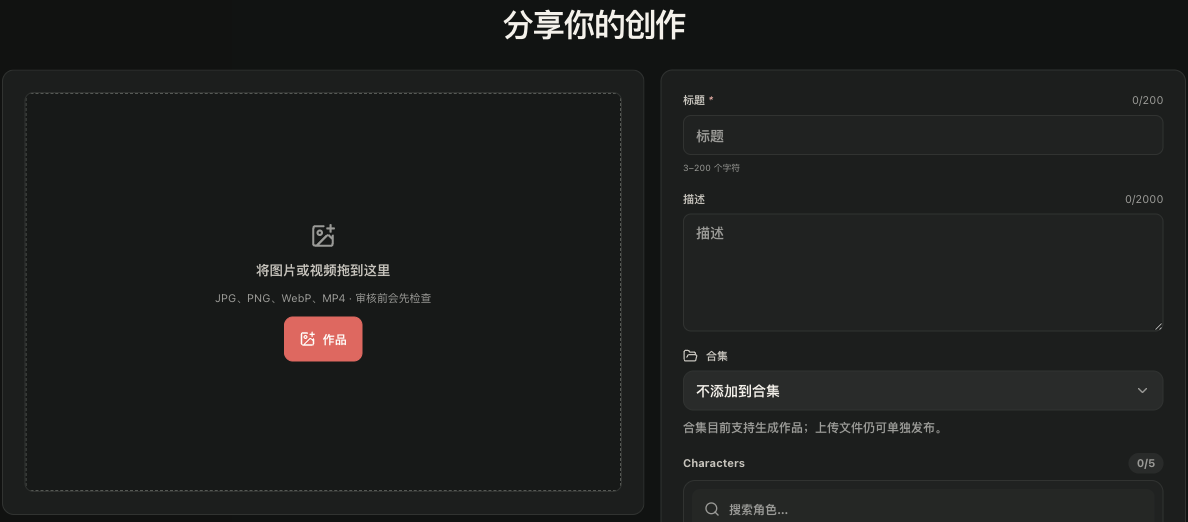
Prepare a community post
Eligible creations offer Publish as Post, or you can select a creation on the Publish page. Add a title and submit it for review; submission does not make it public immediately.
Open PublishPrepare a community postView larger image

What to expect
You know where to revisit, keep, download, and submit your work for review.
Common issues
- Publishing options depend on the creation and may differ for uploads.
- Check community rules before submitting; the page shows the current review status.