
Before you start
- Midjourney turns text into images. This guide covers Let’s Gen; generating requires sign-in and the Gems shown before submission.
- The comparison images come from Midjourney’s documentation, not Let’s Gen tests. Their model versions are not specified. Results vary with version, prompt and randomness; captions explain the English labels.
A prompt to try
An orange cat sits by a café window after the rain. An evening street is outside, with warm indoor light and soft cinematic photography.
Follow these steps
Default or Niji? Choose a visual direction
Default is a general-purpose model: a starting point for photography, products, landscapes and varied styles. Niji focuses on anime and illustration, including characters and line work. These are different model directions, not quality tiers. Choose Midjourney in Create Image, then use Default / Niji. Currently Default uses v8.2 and Niji uses Niji 7. Compare with the same subject and setting, changing only the model. To explore anime, replace “cinematic photography” in the example with “Japanese anime illustration”.
Open Create ImageMidjourney · Version / NijiWrite a prompt and establish a baseline
Start with subject + setting + lighting + style, or copy the example. Begin at Stylize 100, Chaos 0, Weird 0, then change one control at a time. Keep the model, prompt, aspect ratio and references unchanged. Turn off Auto Polish when comparing. Generation is random; suggested values are starting points, not recipes for exact results.
Stylize: how much artistic interpretation?
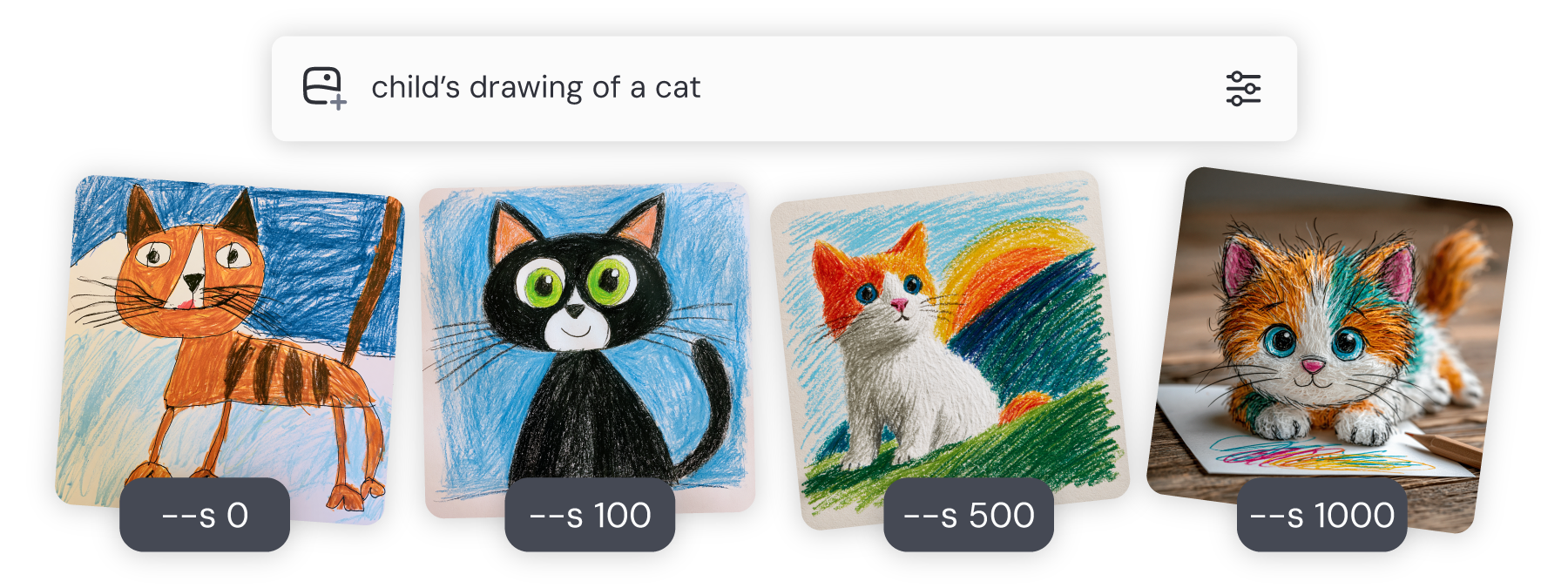
Range 0–1000; default 100. Lower values tend to follow the description more literally. Higher values allow more aesthetic interpretation, which can add lighting, decoration and visual polish while moving away from details. This is not a sharpness control. The image asks for a child’s drawing of a cat: lower values retain simple marks; higher values add a more polished treatment. Try 0, 100 and 500 to balance literalness and aesthetics.

Prompt: a child’s drawing of a cat. Left to right: Stylize 0 / 100 / 500 / 1000. Image: Midjourney documentation. Midjourney · StylizeView larger image Chaos: how different should the candidates be?
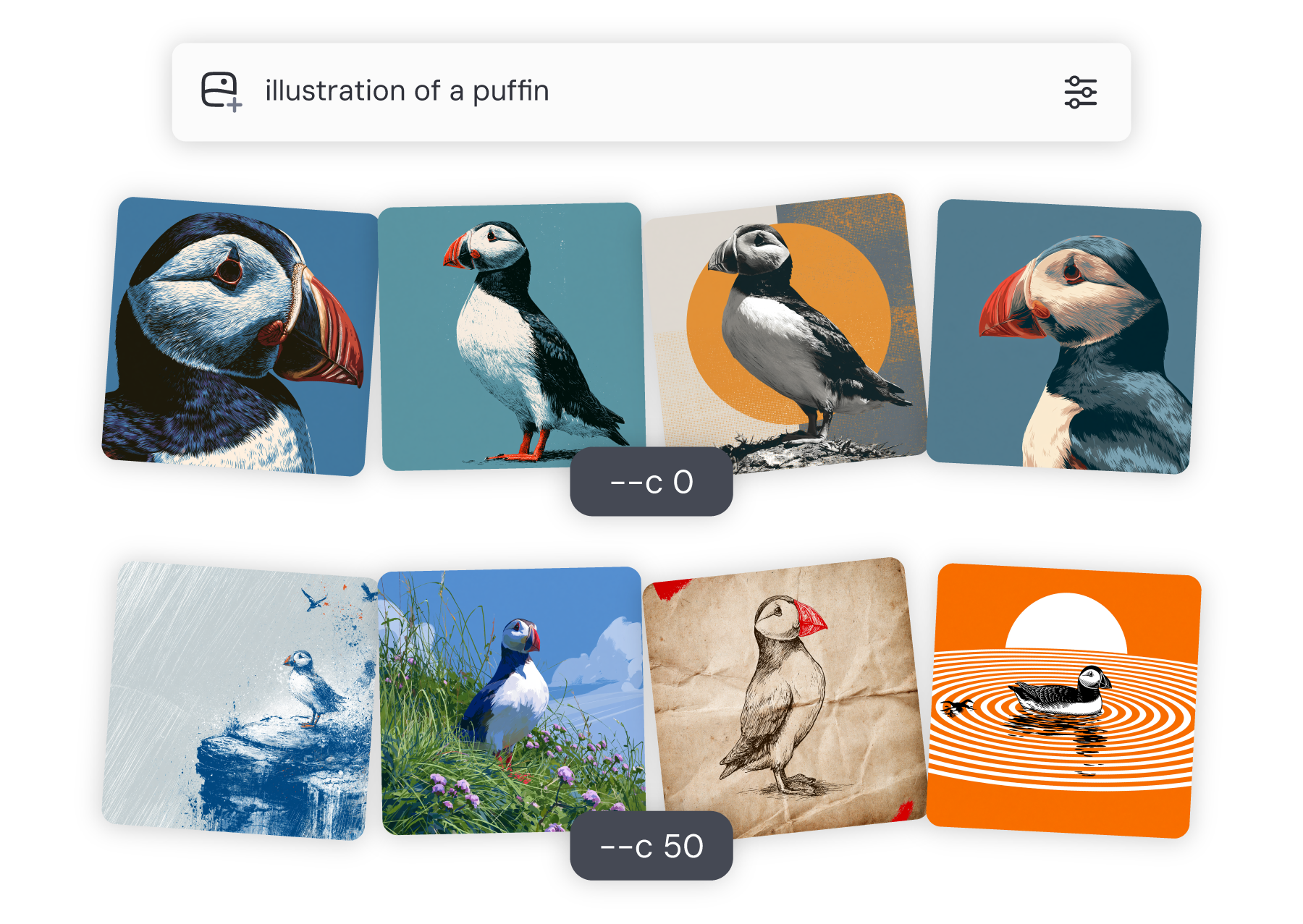
Range 0–100; default 0. Chaos controls variety among candidates from one request. Low values are more focused; high values explore different compositions and looks. It does not increase the number of returned images or simply make a scene messy. Compare the four candidates within each row: the higher-Chaos set is more varied. Start at 0 for refinement, or try 25 or 50 for ideas. High values may follow prompt details less closely.
Prompt: illustration of a puffin. Top: Chaos 0; bottom: Chaos 50. Compare the four images within each row. Image: Midjourney documentation. Midjourney · Chaos / VarietyView larger image Weird: how unconventional should each image feel?
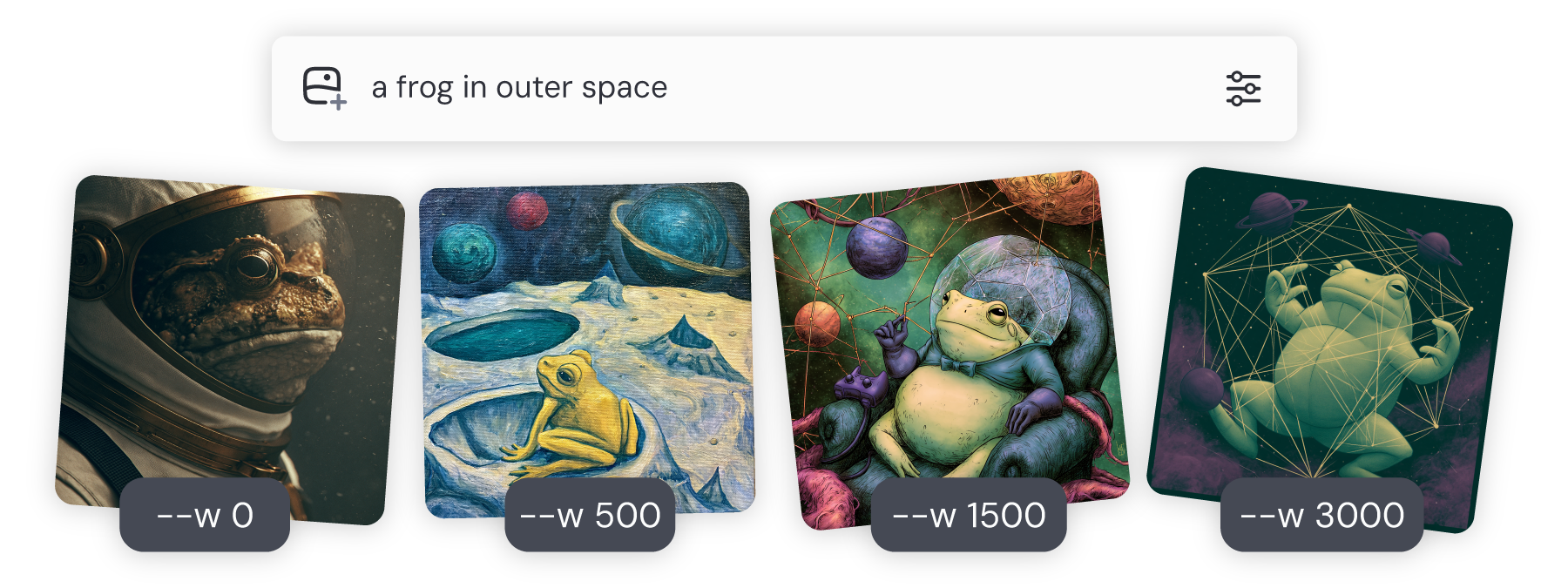
Range 0–3000; default 0. Weird encourages unusual forms, combinations and aesthetics for surreal or experimental art. Chaos changes the spread between candidates; Weird changes how unconventional each image itself feels. Observe the increasingly unusual forms and mood in the example. Try 0, 100 and 500 gradually. Keep 0 when you want more predictable characters or products. Weird is experimental; higher is not automatically better.
Prompt: a frog in outer space. Left to right: Weird 0 / 500 / 1500 / 3000. Image: Midjourney documentation. Midjourney · WeirdView larger image Try it on Let’s Gen
The final link opens Create Image with Midjourney, Default and 100 / 0 / 0 selected. Paste a prompt, adjust controls in output settings, review the cost, then select Create. Currently a request costs 80 Gems and includes the candidates actually returned, up to four. The count is not guaranteed. Midjourney has no image-count, resolution or negative-prompt controls here. Adding references selects editing; start without them for this exercise. Always use the final displayed price.
What to expect
Choose Default or Niji, then remember: Stylize controls artistic interpretation, Chaos controls variety within a set, and Weird controls unconventional aesthetics. Start at 100 / 0 / 0 and change one thing at a time.
Common issues
- The --s, --c and --w labels in official images are official parameter syntax. On Let’s Gen use the form controls; do not paste -- flags into the prompt.
- Switching Default / Niji changes the model, not Stylize. Increasing Chaos is not the same as increasing Weird.
- Opening the tool or copying a prompt does not generate anything. Each Create submission may spend Gems; check settings and cost first.